![Qwiek_white.png]](https://help.qwiek.eu/hs-fs/hubfs/Presskit/Presskit%20Qwiek%20logo/Qwiek_white.png?height=40&name=Qwiek_white.png)
1. Gather your files
With older models, you had to choose: either a stick with photos and music, or a stick with only videos. Fortunately, that limitation is a thing of the past! You can now simply place all your files (music, photos, and videos) mixed together on a single USB flash drive. Gather all the desired material in a folder on your computer first.
Please note: The photo, video, and music files must still meet the technical specifications. These can be found here.
2. Choose a USB flash drive
Nowadays, you are much less limited in which USB flash drive you can use. The new Qwiek.up now also supports formats such as exFAT and NTFS. In practice, this means that you can directly use almost any USB flash drive you buy in the store, without having to make difficult technical adjustments on your computer.
3. Transfer the files to the USB flash drive
Copy the files from your computer to the USB flash drive. The basic way you organize the folders on the drive is still the same as before.
Tip! For a refresher or the exact basic explanation on how to create these folders, we would like to refer you to the original article: How do I create a personal experience module?
4. Connect the drive to the Qwiek.up
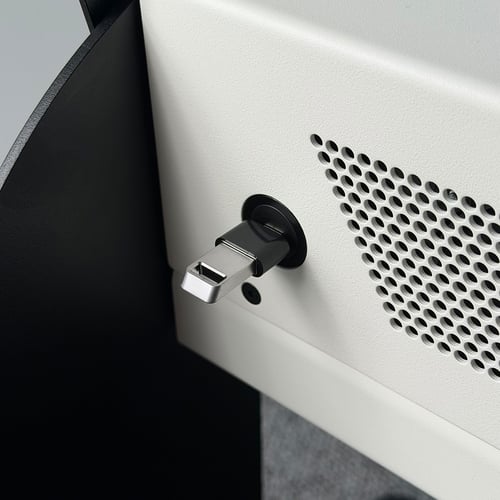
Please note: the connection on the Qwiek.up has been modernized. You will no longer find a large, rectangular USB port (USB-A) on the device. Your custom USB flash drive now goes into the small, oval port (USB-C). This port is located at the bottom of the Qwiek.up, in the same spot as the power cable.
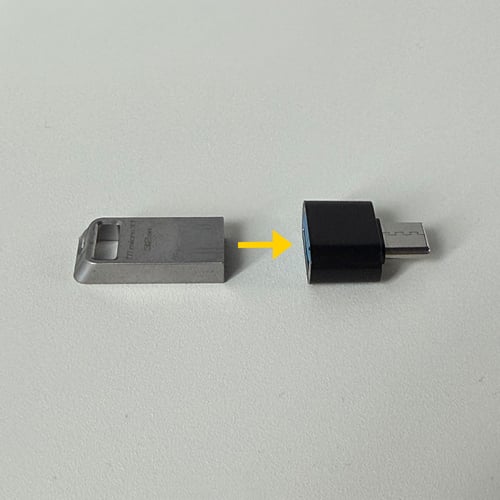
- Do you still have old custom modules? No worries. If you still have old custom USB flash drives with the large rectangular connector, you can continue to use them with the help of a small, separate adapter (a USB-A to USB-C adapter).
Please note: This adapter is not supplied with the Qwiek.up and is not available via the Qwiek webshop.
5. Start and enjoy
Turn on the Qwiek.up and insert the USB flash drive (with the adapter, if necessary) into the port at the bottom. The device will read your files and automatically start playing your personalized visuals and sounds.