![Qwiek_white.png]](https://help.qwiek.eu/hs-fs/hubfs/Presskit/Presskit%20Qwiek%20logo/Qwiek_white.png?height=40&name=Qwiek_white.png)
Option 1: Connecting via Wi-Fi
This is the fastest way to wirelessly connect your Qwiek.up to your own network.
1. Open the settings
Make sure no module is playing. On the home screen, tap the gear icon to go to the settings menu.
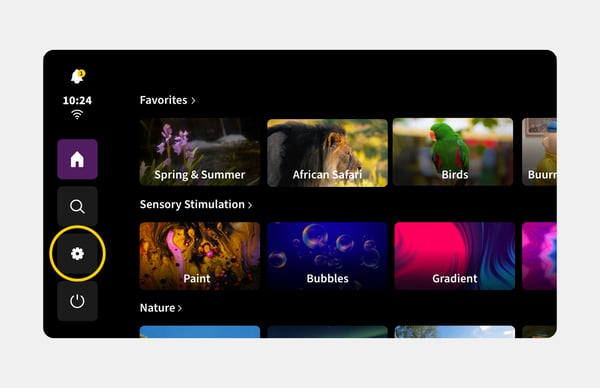
2. Go to Wi-Fi
Tap the 'Wi-Fi' option in the menu. The device will now automatically search for available networks nearby.
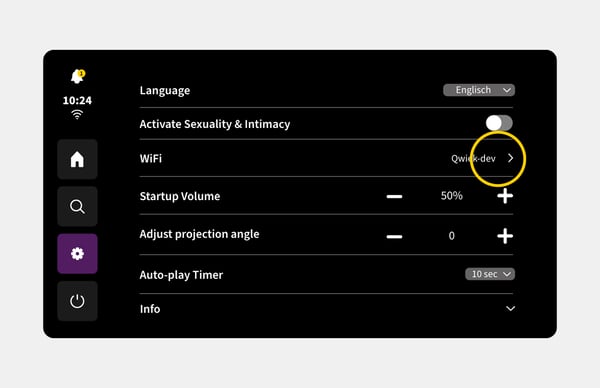
3. Select your network
Choose the correct Wi-Fi name from the list that appears on the screen.
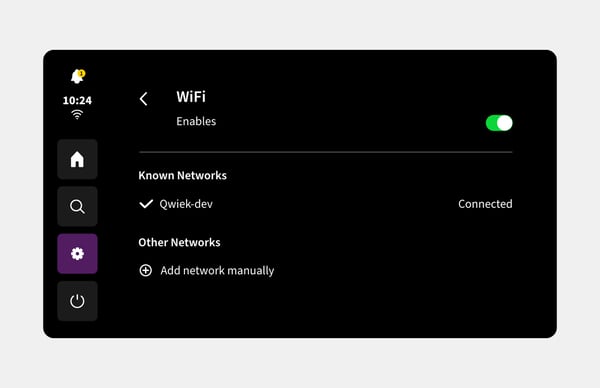
4. Enter the password
A digital keyboard will appear on the touchscreen. Type the Wi-Fi password here and tap the checkmark.
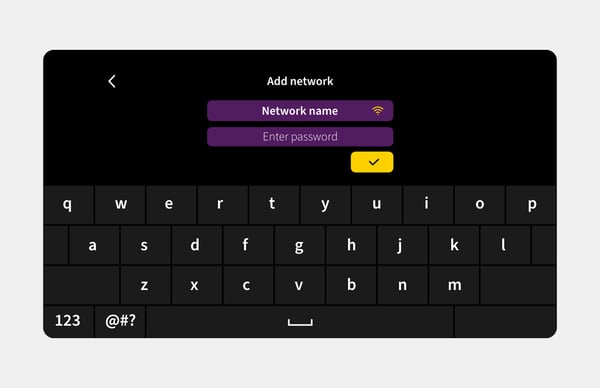
5. Check the connection
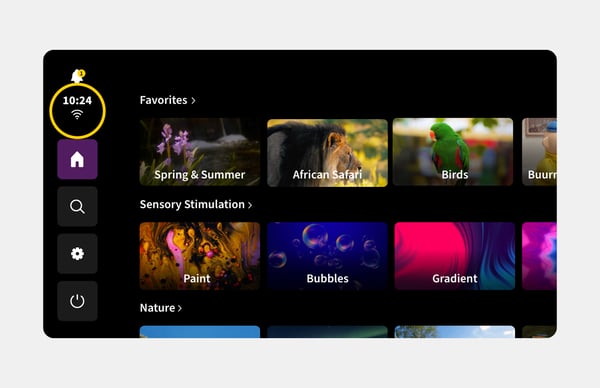
Once the connection is successful, you will see a checkmark next to the network name. The familiar Wi-Fi icon will also appear in the left bar of the home screen.
Option 2: Connecting via your mobile phone (tethering)
Is there no Wi-Fi network nearby, or is the Wi-Fi temporarily down? You can share your mobile phone's internet connection with the Qwiek.up using a USB cable. This is called tethering.
1. Connect the cable
Take your mobile phone's (charging) cable. Plug one end into your phone and the other end into the USB port of the Qwiek.up.
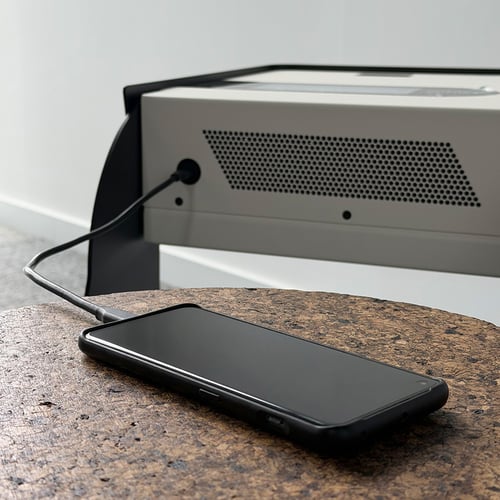
Take your mobile phone's (charging) cable. Plug one end into your phone and the other end into the USB port of the Qwiek.up.
2. Open the settings on your phone and activate USB tethering
Go to the settings menu of your smartphone. Look for the 'Mobile hotspot', 'Wireless hotspot', or 'Network sharing' option. In this menu, enable 'USB tethering' (or 'Internet sharing via USB').
.jpg?width=500&height=500&name=Tethering%20Telefoon%203%20ENG%20(1).jpg)
3. Check the Qwiek.up
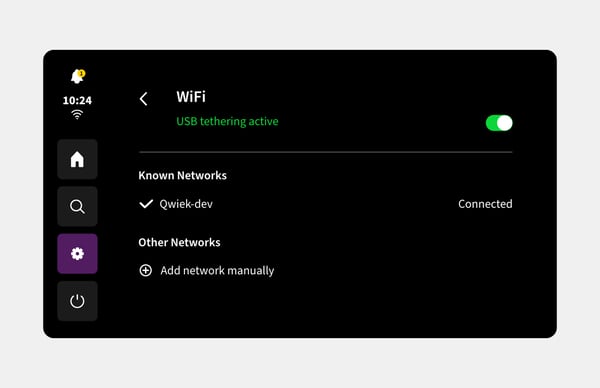
The Qwiek.up will now automatically recognize the cable connection as an internet source. You will see the network icon on the Wi-Fi settings screen change, indicating that you are online.
Tip: Does your Wi-Fi meet the requirements?
Our videos and modules are played locally and are therefore not streamed. However, a stable internet connection remains important. This connection is used to retrieve updates, provide usage insights, and allow for remote diagnostics of potential malfunctions. Do you want to check if your network is ready for this? Then read 'What technical requirements must the Wi-Fi network meet according to Qwiek?' for all the details.