![Qwiek_white.png]](https://help.qwiek.eu/hs-fs/hubfs/Presskit/Presskit%20Qwiek%20logo/Qwiek_white.png?height=40&name=Qwiek_white.png)
1. Start a module
Make sure the desired module is running. If you don't know exactly how to do this, you can check Steps 1 to 3 of the article 'How do I start an Experience Module?' to start up a module.
2. Lock the screen
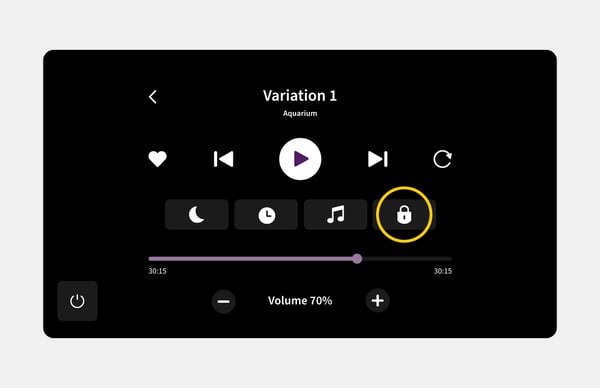
Once the module is playing, find the lock button on the screen. Press and hold this button for 3 seconds. You will see that the screen locks. From this moment on, the screen will no longer respond to accidental touches.
3. Unlock the screen
Do you want to pause or stop the module? Then you must first unlock the screen. You can do this by holding a finger on the screen for 3 seconds.
Tip! You do not need to press a specific button to unlock it. You can press and hold your finger anywhere on the screen to remove the lock.